







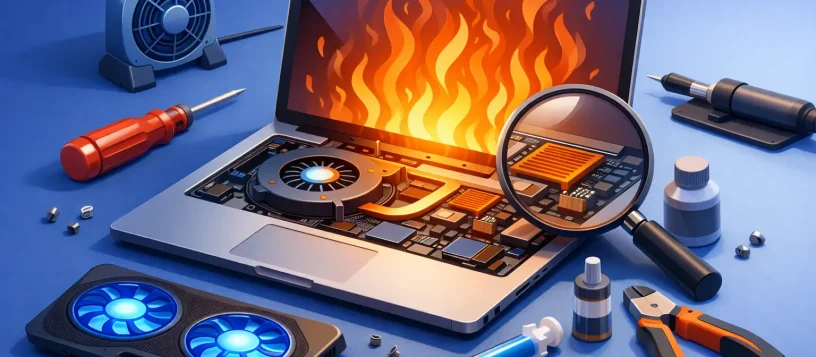
A laptop that becomes painfully hot during a video call, slows down while you work, or suddenly shuts off is not just frustrating. It may be protecting itself from heat damage. This laptop overheating repair guide explains what you can safely check at home, what should be handled by a technician, and when acting quickly can protect your files, battery, and motherboard.
Heat is normal during demanding work, gaming, streaming, or charging. The concern starts when the fan runs constantly, the bottom case is too hot to touch, performance drops without explanation, or the laptop powers off under load. Ignoring those signs can turn a manageable cleaning or fan repair into a more expensive internal hardware problem.
Why laptops overheat
Modern laptops fit powerful components into a compact space. The processor, graphics chip, battery, storage, and charging circuit all create heat, while a small fan and heat sink are responsible for moving that heat out. When airflow is blocked or a cooling part fails, temperatures climb quickly.
Dust is one of the most common causes. It collects in air vents, coats the fan blades, and forms a layer across the heat sink fins. The fan may still sound like it is working, but air cannot move efficiently through the system. Homes with pets, carpeting, or frequent indoor dust often see this issue sooner.
Software can also be part of the problem. A browser tab, background update, malware infection, or demanding application may keep the processor working at full speed. In that case, the laptop produces more heat than usual even if its cooling system is functioning. Older thermal paste, a worn cooling fan, a damaged heat pipe, or a swollen battery can create more serious hardware-related overheating.
Warning signs you should not ignore
A hot keyboard after light use does not always mean a repair is needed. However, these symptoms deserve attention, especially when they happen repeatedly:
- The laptop shuts down, restarts, freezes, or shows a blue-screen error during normal work.
- The fan makes grinding, rattling, clicking, or unusually loud noises.
- Programs lag badly, the screen stutters, or the laptop becomes slow after a few minutes.
- The case is bulging, the trackpad is lifting, or the battery drains unusually fast.
A swollen battery is an urgent safety concern. Stop using and charging the laptop, avoid pressing on the case, and arrange professional inspection. Do not attempt to puncture, flatten, or remove a swollen battery yourself.
Laptop overheating repair guide: safe checks at home
Start by saving your work and shutting the laptop down completely. Give it time to cool before testing anything. Continuing to run a system that is already overheating can put added stress on the internal components.
First, check where the laptop sits. A bed, couch, blanket, lap desk with solid panels, or carpet can block the intake vents underneath. Move it to a hard, flat surface with open space around the sides and back. If temperatures improve quickly, poor airflow was likely a major contributor.
Next, inspect the vents with a flashlight. You may see visible dust near the openings. Use a soft brush around the exterior vents or short, controlled bursts of compressed air designed for electronics. Keep the can upright and do not force a powerful air stream deep into the laptop. Excessive pressure can push dust farther inside or cause the fan to spin too fast.
Then check your workload. Open Task Manager on Windows or Activity Monitor on a Mac to see whether one application is using an unusually high percentage of processor power. Close programs you do not need, reduce the number of browser tabs, and restart the laptop. If a particular app repeatedly drives high processor use, update it or have the system checked for software issues.
Also make sure the operating system and security software are current. Malware and unwanted background programs can consume system resources without obvious warning. A professional malware removal service may be worthwhile if the laptop runs hot alongside pop-ups, unfamiliar programs, browser redirects, or sudden slowdowns.
What not to do when your laptop is overheating
Cooling tricks can cause more damage than they prevent. Do not place the laptop in a refrigerator, freezer, or near an open window in extreme weather. Rapid temperature changes can create condensation inside the device, which introduces a liquid damage risk.
Avoid relying on a cooling pad as the only solution. A quality cooling pad can improve airflow for some models, particularly during gaming or long work sessions, but it cannot fix a clogged heat sink, failing fan, or dried thermal paste. If your laptop needs a cooling pad just to handle email and documents, it needs diagnosis.
It is also wise to avoid taking the bottom cover off unless you are experienced with laptop repair. Many current laptops use delicate clips, hidden screws, and battery connectors that are easy to damage. Opening a device can also affect warranty coverage. The trade-off is simple: a basic external cleaning is low risk, while internal cleaning and component work are best left to certified technicians.
When professional repair is the better option
Professional service is recommended when overheating continues after improving ventilation and reducing heavy workloads. It is especially important if the fan is noisy or silent, the laptop shuts down repeatedly, or you notice a burning smell. Those symptoms can point to a failed fan, blocked heat sink, faulty charging component, battery issue, or motherboard problem.
A technician can safely open the laptop, remove internal dust buildup, test the fan, inspect heat pipes, replace worn thermal paste, and check whether the battery or charger is contributing to excess heat. They can also test temperatures under controlled load rather than guessing based on how warm the case feels.
For business users, quick diagnosis matters because an overheating laptop can create downtime, missed meetings, and risk to important files. Backing up data before a repair is always a good idea. If the device cannot stay powered on long enough to complete a backup, data recovery or transfer support may be needed before repairs begin.
Prevent overheating from coming back
Once the immediate problem is fixed, a few habits can extend the life of the laptop. Keep vents clear, use a hard work surface, and avoid leaving the device in a hot car or direct sunlight. Shut it down or let it sleep when it will not be used for long periods instead of keeping it under unnecessary load all day.
For laptops used daily, periodic internal cleaning is sensible, particularly in homes with pets or busy office environments. The right schedule depends on the device and its surroundings. A lightly used laptop in a clean room may go much longer between cleanings than a gaming laptop or a workstation used near carpet and pet hair.
Pay attention to charging habits as well. Use a compatible, quality charger and do not keep a damaged cable or overheating power adapter in service. If the battery life drops sharply or the case begins to separate, arrange inspection promptly.
When heat, noise, or random shutdowns interrupt the way you work, a clear diagnosis is better than temporary workarounds. Vaughan Computers can assess the cooling system, software load, battery condition, and internal components so you can get back to using your laptop with confidence.