







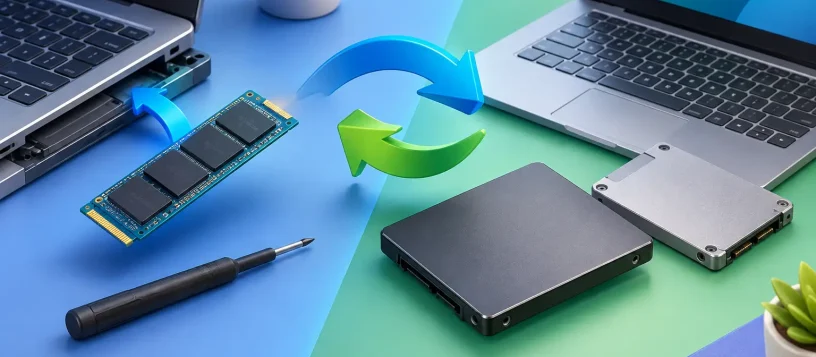
A computer that takes ten minutes to start, freezes while opening files, or constantly shows low-storage warnings can make every task feel harder than it should. The right choice between an SSD upgrade versus replacement depends on what is actually causing the problem: limited capacity, an older hard drive, a failing SSD, or a computer that has reached the end of its useful life.
For many laptops and desktops, an SSD is one of the most cost-effective ways to improve daily performance. But installing a bigger or faster drive will not repair a damaged motherboard, solve severe overheating, or make an outdated computer suitable for every modern workload. A proper diagnosis helps avoid spending money on the wrong fix.
SSD Upgrade Versus Replacement: The Key Difference
An SSD upgrade means improving your existing storage setup. You may replace a smaller working SSD with a larger or faster model, add a second SSD to a desktop, or replace an old mechanical hard drive with an SSD. The goal is better speed, more room for files, or both.
An SSD replacement is usually necessary when the current drive is failing or has failed. Symptoms can include repeated crashes, missing files, corrupted Windows or macOS installations, unusually slow file access, boot errors, or a system that no longer recognizes the drive. In this situation, the priority is protecting your data and restoring a reliable computer, not simply adding performance.
The distinction matters because a slow computer is not always a failed computer. Conversely, a drive that is starting to fail may still boot occasionally, which can create a false sense that there is time to wait. If important photos, work files, tax records, or client data are stored on the device, acting early is usually the safer choice.
When an SSD Upgrade Makes Sense
An upgrade is often the best answer when your computer works reliably but feels held back by its storage. This is especially common with older PCs that still use a traditional hard disk drive. Replacing that hard drive with an SSD can dramatically reduce startup times, speed up app launches, and make everyday browsing and document work feel much more responsive.
Storage capacity is another common reason to upgrade. A 128GB or 256GB SSD can fill quickly with photos, videos, games, software updates, and business files. When free space becomes scarce, your system may slow down and updates may fail. Moving to a 500GB, 1TB, or larger SSD gives you room to work without constantly deleting files or moving them to external storage.
Speed upgrades can also be worthwhile, but compatibility matters. Some computers use a 2.5-inch SATA SSD, while others use a smaller M.2 drive. An M.2 drive may use either SATA or NVMe technology, and they are not interchangeable in every system. A faster NVMe SSD can be a strong choice for compatible laptops, desktops, creative workstations, and office computers that regularly handle large files. However, installing the fastest drive available will not deliver its full benefit if the computer only supports slower interfaces.
For a small business, an SSD upgrade can reduce frustrating delays across workstations without requiring a complete hardware refresh. That can be a practical middle ground when staff need quicker access to documents, accounting software, email, or cloud files, but the existing computers are otherwise in good condition.
Signs Your SSD Needs Replacement Instead
A failing SSD does not always make noise like an old hard drive, so the warning signs can be easy to miss. Sudden blue-screen errors, frequent application crashes, files that will not open, messages saying the drive cannot be found, or a computer that randomly restarts can all point to a storage issue. A system that has become slow overnight, rather than gradually, deserves attention as well.
Some failures are caused by file-system errors or software problems that can be repaired. Others are physical or electronic failures inside the SSD. Once a drive begins showing serious warning signs, there is no reliable way to predict how long it will keep working. Continuing to use it without a backup can turn a straightforward replacement into a more difficult data recovery situation.
Replacement usually includes more than installing a new drive. The process may involve checking the health of the old SSD, backing up or cloning data when possible, installing the correct replacement drive, reinstalling or transferring the operating system, and testing the computer afterward. If the drive is unreadable, data recovery may need to happen before a new SSD is installed.
Do Not Assume the Drive Is the Only Problem
Storage is a major factor in computer performance, but it is only one part of the picture. A laptop with too little RAM may still struggle with multiple browser tabs, video calls, and office programs even after an SSD upgrade. High temperatures can cause slowdowns and unexpected shutdowns. Malware, unwanted startup programs, failing batteries, Wi-Fi issues, and software corruption can also make a device feel unreliable.
That is why a diagnosis comes before a recommendation. If a laptop has a slow hard drive and enough memory, an SSD upgrade may offer excellent value. If it has a failing SSD plus battery problems, liquid damage, or an aging processor that cannot support the software you need, the better decision may be repair, replacement, or a combination of both.
Choosing the Right Capacity and Type
The best SSD is not always the biggest or most expensive model. The right capacity depends on how you use the computer. Someone using email, web browsing, and basic documents may be comfortable with 500GB. Families storing years of photos and videos, gamers with large game libraries, and professionals working with media files often benefit from 1TB or more.
It is also smart to leave free space on the drive. Filling an SSD to its limit can reduce performance and make routine updates harder to install. A technician can review how much storage you are using now and recommend enough headroom for the next few years.
For desktops, adding a second SSD can be a useful option if the original drive is healthy. You can keep the operating system and programs on the main drive while using the second drive for projects, photos, backups, or large files. For laptops with only one storage slot, upgrading generally means replacing the existing drive and moving your data to the new one.
Protect Your Data Before Any SSD Work
Before an upgrade or replacement, back up essential files whenever the computer is still accessible. Copy documents, photos, desktop files, and business data to an external drive or a trusted cloud backup service. Do not forget browser bookmarks, email archives, saved passwords, software license information, and files stored in folders outside Documents or Pictures.
A clone can make the transition easier by copying your existing operating system, programs, settings, and files to the new SSD. But cloning is not always the right choice. If the current installation is badly corrupted, infected with malware, or cluttered by years of unnecessary software, a clean operating system installation may provide a better result. The trade-off is that applications and settings will need to be set up again.
For failing drives, the rule is simple: prioritize the data before performance. Repeated restart attempts, repair tools, and do-it-yourself cloning can put added stress on an unstable drive. If the files are valuable, stop using the computer and have the storage assessed before the condition gets worse.
Is It Worth Upgrading an Older Computer?
Many older computers are still worth upgrading if they have a healthy screen, keyboard, battery or power supply, and enough processing power for your needs. An SSD can give a well-maintained laptop or desktop several more productive years, often at a far lower cost than buying a new device.
There are limits. A very old computer may not support current operating systems or security updates. It may have only a small amount of RAM, a weak battery, obsolete ports, or hardware damage that makes additional repairs hard to justify. For business users, downtime and compatibility can matter as much as repair cost. If your computer is delaying client work or leaving you unable to run required software, replacement may be the more practical long-term decision.
Vaughan Computers can help identify whether your system needs a larger SSD, a replacement drive, data recovery support, or a different repair plan. With a clear diagnosis and upfront quote, you can make the decision based on your device, your files, and your budget rather than guesswork.
A computer does not need to be brand new to feel dependable again. If storage warnings, slow performance, or unexplained crashes are getting in the way, have the drive checked while your data is still within reach.