







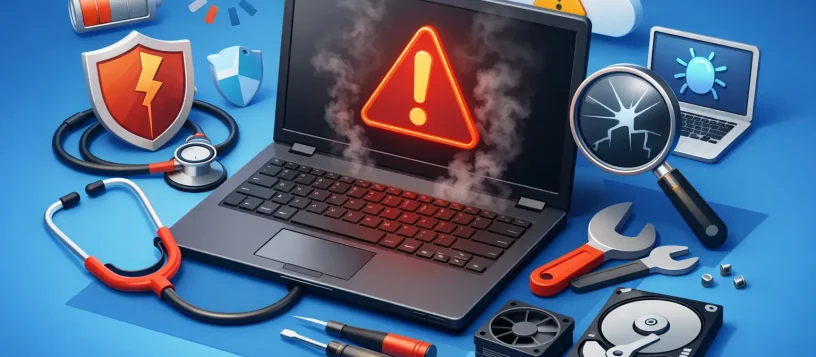
A laptop rarely fails without warning. It may take longer to open a file, run hotter than usual during video calls, or lose battery power before the day is over. Knowing the best signs a laptop needs service can help you protect your data, avoid a larger repair bill, and get back to work, school, or home life with less disruption.
Some issues have a simple cause, such as too many startup apps or a worn charging cable. Others point to failing hardware, malware, liquid damage, or an overheating system that should be checked by a technician. The key is not to wait until your laptop will not turn on at all.
1. Your Laptop Has Become Noticeably Slow
A laptop that takes several minutes to start, freezes while opening programs, or struggles with basic web browsing needs attention. Temporary slowness can happen after a major system update, but ongoing delays are different. If every click comes with a pause, there is likely an underlying problem.
The cause could be a nearly full storage drive, too many background programs, malware, a failing hard drive, or insufficient memory for the work you are doing. Older laptops may also benefit from a storage or memory upgrade instead of a complete replacement.
Before deleting important files or installing random cleanup software, have the device diagnosed. A proper assessment separates a software issue from a hardware fault and helps you pay for the repair that actually solves the problem.
2. It Overheats or the Fan Runs Constantly
A warm laptop is normal. A laptop that is too hot to use comfortably, shuts down unexpectedly, or sounds like a small vacuum cleaner is not. Excess heat can damage internal components over time, including the battery, motherboard, processor, and storage drive.
Dust buildup in the cooling system is a common reason for overheating. Old thermal paste, a worn fan, blocked vents, or demanding software can also be responsible. Using a laptop on a bed, sofa, or blanket can restrict airflow and make the issue worse.
Turn the device off if it becomes extremely hot or repeatedly shuts down. Continuing to use it under those conditions can turn a straightforward cleaning or fan repair into more serious internal damage.
3. The Battery Drains Fast or Will Not Charge Properly
Most laptop batteries lose capacity over time, but a sudden drop in battery life deserves a closer look. If your laptop falls from a full charge to 20 percent within an hour, turns off while it still shows charge remaining, or only works when plugged in, the battery may be worn out.
Charging problems do not always mean the battery is at fault. A damaged charging cable, loose charging port, faulty power adapter, or motherboard power issue can cause similar symptoms. If you need to hold the charger at a certain angle to make it work, stop using it that way. A loose connection can worsen with repeated pressure.
A battery replacement can be an affordable way to extend the useful life of an otherwise dependable laptop. It depends on the model, its age, and the condition of the rest of the device, which is why a diagnosis matters first.
4. The Screen Flickers, Shows Lines, or Has Dark Areas
A cracked screen is an obvious reason to seek service, but display trouble is not always visible damage. Flickering, colored lines, random black screens, dim patches, or an image that appears only when the lid is held in a certain position can all indicate a repair need.
The problem may be the display panel, a loose or damaged screen cable, graphics hardware, or even a software driver issue. Connecting your laptop to an external monitor may help identify whether the problem is limited to the built-in display, but it does not replace a professional inspection.
Do not press on the screen or repeatedly force the lid into position. Laptop screens and internal cables are delicate, and a small fault can quickly become a complete display failure.
5. It Makes Clicking, Grinding, or Beeping Sounds
Unusual sounds are among the clearest signs a laptop needs service quickly. A clicking or grinding sound may come from a failing mechanical hard drive or cooling fan. Repeated beeps during startup can signal a memory, keyboard, or motherboard problem, depending on the laptop model.
If you hear clicking from a laptop with a traditional hard drive, back up essential files as soon as possible if the computer still allows it. A failing drive can stop working without further notice, putting photos, documents, customer records, and school assignments at risk.
Avoid repeatedly restarting a laptop that is making mechanical noises. Each attempt may put additional stress on a failing drive. Data recovery is often possible, but acting early gives you better options.
6. The Laptop Crashes, Restarts, or Will Not Start
An occasional program crash happens. Frequent blue screens, random restarts, error messages, or a laptop that gets stuck on the startup screen should not be ignored. These symptoms can result from corrupt system files, malware, failing storage, memory problems, overheating, or power-related hardware issues.
A laptop that will not start at all does not necessarily mean it is beyond repair. Sometimes the solution is as simple as replacing a battery, charger, display component, or failed storage drive. Other cases require motherboard-level diagnostics.
The trade-off is time. Waiting until the laptop cannot boot can make it harder to retrieve files or complete a same-day repair. If startup is becoming unreliable, schedule service before you are locked out of the device completely.
7. The Keyboard, Trackpad, or Ports Stop Working
A few unresponsive keys may seem manageable until a password, spreadsheet, or important email becomes impossible to complete. Sticky keys, missing keystrokes, a jumping trackpad, USB ports that disconnect devices, or an HDMI port that no longer works can all point to physical damage or internal wear.
Liquid spills are a frequent cause. Even if the laptop worked immediately after a spill, moisture can cause corrosion later. Shut it down, disconnect the charger, and do not use a hair dryer or place it in rice. Those methods do not remove residue from internal components and may cause additional damage.
Professional liquid damage service focuses on inspection, cleaning, and testing before corrosion spreads. Fast action can make a meaningful difference.
8. Pop-Ups, Strange Programs, or Security Warnings Keep Appearing
A laptop that redirects web searches, displays nonstop pop-ups, sends emails you did not write, or runs unfamiliar programs may have malware. Security issues can slow your device, expose passwords, and put personal or business data at risk.
Do not assume every warning window is legitimate. Some pop-ups are designed to pressure users into calling fake support numbers or downloading harmful software. If a message claims your device is infected and demands immediate payment, close it if possible and seek trusted help.
A malware removal service should do more than delete one suspicious file. It should identify the source of the infection, remove unwanted programs, check system settings, and help you protect accounts that may have been exposed.
9. Wi-Fi Keeps Dropping or Your Laptop Cannot Connect
Connection trouble is sometimes caused by the router or internet provider, especially if several devices in the home or office are affected. But if every other device connects normally and one laptop continually drops Wi-Fi, has weak signal range, or cannot find networks, the issue may be with the laptop itself.
A failing wireless card, outdated driver, damaged antenna, malware, or incorrect network settings can all create recurring problems. For small businesses, unreliable connectivity can interrupt payments, cloud access, video meetings, printers, and customer communication.
Testing the laptop alongside the network is the fastest way to determine where the problem begins. This prevents replacing equipment that was never the real cause.
10. You Are Running Out of Storage or Seeing File Errors
A full drive affects more than file storage. It can make updates fail, slow down the system, and prevent programs from working correctly. Messages about damaged files, missing folders, or a drive that suddenly disappears are more urgent, especially if the laptop stores irreplaceable data.
Do not keep saving new files to a drive that may be failing. If possible, back up important information to a separate, reliable location. Then have the storage device checked. In many cases, replacing an older hard drive with a solid-state drive improves speed and reliability at the same time.
Get Help Before a Small Issue Becomes Downtime
Laptop problems are frustrating because they interrupt the work and people you depend on your device to reach. Whether your laptop is slow, overheating, damaged, infected with malware, or refusing to charge, early service usually gives you more repair options and a clearer path forward.
For residents and small businesses in Vaughan, Woodbridge, Maple, Kleinburg, and Nobleton, Vaughan Computers provides practical diagnostics and repair support for hardware and software problems across major laptop brands. A free diagnosis, upfront quote, and no-fix-no-fee approach can take the guesswork out of deciding what to do next. If something about your laptop feels off, trust that warning and have it checked before it becomes a complete shutdown.