







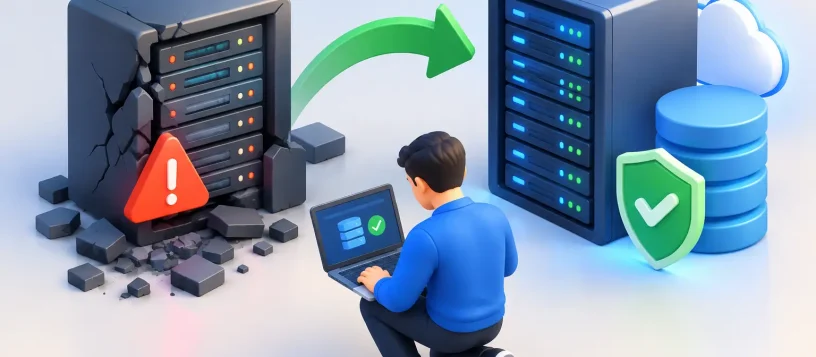
A server failure can stop a small business in minutes. Files become unavailable, staff cannot sign in, shared applications go offline, and customers may be left waiting for an answer. Effective server crash recovery is not about getting a machine to turn back on as quickly as possible. It is about protecting your data, identifying the cause, and restoring the right systems without making the damage worse.
For offices in Vaughan, Woodbridge, Maple, Kleinburg, and Nobleton, every hour of downtime can mean missed sales, delayed work, and unnecessary stress. A calm, organized response gives you the best chance of a clean recovery.
First, Confirm What Actually Failed
A “server crash” can describe several different problems. The physical server may have shut down because of a failed power supply, overheating, faulty memory, or a damaged hard drive. In other cases, the hardware is running but Windows Server, a virtual machine, a database, network storage, or a critical application has stopped responding.
Start by checking what users can and cannot access. If no one can use the internet, the issue may be with the network, router, switch, or internet provider rather than the server itself. If staff can browse the web but cannot open shared folders or business software, the server or its services are more likely involved.
This distinction matters. Restarting equipment without knowing the source of the problem can erase useful error information or put additional strain on a failing drive. A server that powers on but repeatedly freezes needs a different response than one that will not power on at all.
The First 30 Minutes of Server Crash Recovery
The first half hour should focus on containment and documentation, not guesswork. If the server is making clicking, grinding, or repeated spinning sounds, shut it down and avoid further attempts to boot it. Those symptoms can point to a physical drive failure, and continued operation may reduce the chance of successful data recovery.
If there are no signs of physical damage, record the error messages, warning lights, screen photos, and the time the outage began. Check whether there was a recent power outage, software update, failed backup, new hardware installation, or suspicious email activity. These details help narrow down the cause quickly.
Take these immediate actions:
- Let employees know which systems are affected and ask them not to repeatedly try logging in or saving files to alternate locations.
- Disconnect the server from the network if you suspect ransomware, malware, or unauthorized access.
- Verify power cables, surge protection, network connections, and cooling before attempting a controlled restart.
- Confirm whether a recent backup exists, where it is stored, and whether it can be accessed independently of the failed server.
A controlled reboot may be reasonable after these checks if the server appears stable and there is no evidence of drive failure or cyberattack. However, repeated forced restarts are rarely a fix. They can corrupt databases, damage file systems, and turn a manageable outage into a more serious recovery job.
Protect Data Before You Restore Service
When a server crash involves important business files, accounting records, customer information, or shared project folders, data preservation comes first. The goal is to avoid overwriting recoverable information while you bring systems back online.
If the operating system will not load, a technician may need to assess the drives outside the server environment. Depending on the setup, the issue could involve a single failed drive, a degraded RAID array, corrupted system files, or failed storage controller hardware. RAID can help protect against certain drive failures, but it is not a backup. It does not protect you from accidental deletion, ransomware, fire, theft, or a major hardware failure affecting the whole unit.
Do not initialize drives, rebuild a RAID array, or reinstall the operating system before confirming the condition of your data. Those actions may be necessary later, but performing them too early can make recovery harder. A proper diagnosis identifies whether the data is intact, whether it needs to be copied to safe storage, and whether the server can be repaired or should be replaced.
Backups Are Only Useful When They Can Be Restored
Many businesses discover during an outage that their backup was incomplete, outdated, or connected to the same server that failed. A backup strategy should include more than a scheduled task that appears to run successfully.
You need to know how recent the backup is, whether it includes the files and applications that matter most, and how long a restoration will take. Cloud backups provide protection against local hardware loss, while local backups can often restore large amounts of data faster. For many small businesses, using both is the practical choice.
Regular restore testing is the missing step. A backup is not proven until a file, folder, application, or full server image has been restored successfully. Testing may feel like a disruption, but it is far less disruptive than finding a problem during an actual outage.
Common Causes of Server Crashes
Hardware failure is one of the most common causes. Hard drives wear out, power supplies fail, fans stop working, and dust buildup can lead to overheating. Aging servers may continue working for years, then fail without much warning when a component reaches its limit.
Software issues can also bring down a server. Corrupt updates, damaged system files, driver conflicts, failed virtual machines, and database errors can prevent normal startup or cause frequent crashes. These problems may be repairable without replacing the hardware, but they still require careful troubleshooting to avoid losing settings and data.
Cybersecurity incidents are another major concern. Ransomware can encrypt shared files and stop business operations even when the server hardware itself is healthy. Malware, compromised passwords, and unpatched remote access tools can all create an outage. If you suspect an attack, isolate the system before connecting backup drives or other computers. The wrong move can spread the infection across the network.
Power events deserve attention as well. A brief outage, electrical surge, or failing battery backup can cause an abrupt shutdown and file corruption. A properly sized uninterruptible power supply gives staff time to save work and allows the server to shut down safely. It also helps protect sensitive equipment from unstable power.
When Repair Makes Sense and When Replacement Is Smarter
Not every server failure requires a new server. Replacing a failed drive, power supply, fan, memory module, or network component can be cost-effective when the rest of the system is reliable and suitable for your business needs. Repair may also be the fastest path when compatible parts are available and data can be recovered safely.
Replacement becomes more sensible when the server is old, unsupported, underpowered, or experiencing repeated failures. An aging system may cost less to repair today but create another emergency in a few months. If your team has outgrown its storage, remote access, security, or backup capacity, replacement can be an opportunity to build a more dependable setup.
The right decision depends on the server’s age, the condition of its storage, available warranty coverage, software compatibility, and the cost of downtime. A clear diagnosis and upfront quote should come before major work begins. You should understand what failed, what can be recovered, what the repair involves, and what alternatives are available.
Build a Recovery Plan Before the Next Outage
A good server recovery plan is simple enough to use under pressure. It should identify who can authorize repairs, where backups are located, which applications must be restored first, and how employees will communicate during an outage. Include account credentials and recovery contacts in a secure location that does not depend on the failed server.
Prioritize the systems that keep the business moving. For one office, that may be shared files and email access. For another, it may be accounting software, scheduling, point-of-sale records, cameras, or remote access for staff. Recovery does not always need to restore everything at once. Bringing back the most essential services first can reduce downtime while the rest of the environment is repaired.
Regular maintenance also lowers the risk of a surprise crash. Monitor drive health, apply updates carefully, clean dust from hardware, review backup reports, replace weak batteries in battery backup units, and check that antivirus and security tools are working. Small checks performed consistently are more affordable than emergency repairs after total failure.
Vaughan Computers provides practical diagnostics, data recovery support, backup assistance, and business IT help when a server issue interrupts your work. Whether the problem is hardware, software, storage, networking, or a suspected security issue, fast professional assessment can help protect what matters most.
When your server goes down, resist the urge to keep restarting it until something changes. Preserve the evidence, protect the data, and get the right technical help early. That decision can be the difference between a short interruption and a long, expensive recovery.