







A failed hard drive at 9:00 a.m. can stop an entire office before the first customer call is answered. Lost invoices, client files, email archives, accounting records, and project folders are not just an inconvenience. They can mean missed deadlines, lost revenue, and hours of expensive recovery work. This small business backup guide gives you a practical way to protect the information your team depends on every day.
Backups are not only for large companies with dedicated IT departments. A local office with a few computers, a home-based business, a retail shop, or a growing professional team all face the same risks: device failure, accidental deletion, malware, theft, fire, and failed software updates. The right plan does not need to be complicated, but it does need to be consistent.
Why Small Business Backups Matter
Many businesses assume their files are safe because they are stored on a desktop computer, laptop, external drive, or cloud sync folder. Those are useful tools, but they are not always a complete backup strategy. A synced folder can copy an accidental deletion across every connected device. An external drive left beside a computer can be damaged, stolen, or infected at the same time as the computer itself.
The cost of data loss depends on what is missing. For a contractor, it may be estimates, permits, and job photos. For a professional office, it may be customer records, documents, and financial files. For a retail business, it may be sales reports, supplier details, and point-of-sale data. Even a single missing spreadsheet can delay work for days if no one knows which version was current.
A reliable backup plan gives your business options. Instead of hoping a damaged computer can be repaired quickly, you can restore critical files to another device and keep working. That difference matters when customers are waiting.
Start With the 3-2-1 Backup Rule
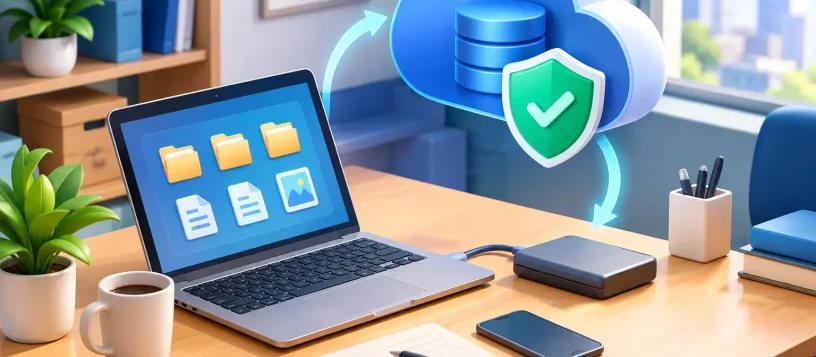
The easiest foundation is the 3-2-1 rule. Keep three copies of important data, stored on two different types of media, with one copy kept off-site. Your working files count as one copy. A local backup, such as an encrypted external drive or network storage device, is another. A secure cloud backup or a drive stored at a different location provides the off-site copy.
This approach protects against more than one kind of failure. A local backup can restore files quickly after a computer problem. An off-site copy helps when the problem affects the office itself, such as theft, flood, fire, or ransomware spreading through the network.
Not every file requires the same level of protection. Start with the data that would cause the most disruption if it disappeared: accounting files, customer contacts, contracts, active projects, email, payroll information, business photos, and software databases. If you are unsure what is stored where, create a short inventory before choosing a backup system.
Small Business Backup Guide: Choose What to Back Up
A backup plan should cover the places where your business actually works, not only the computer in the front office. That often includes employee laptops, desktop PCs, shared drives, cloud applications, mobile devices, and specialized systems such as point-of-sale terminals or surveillance recorders.
For many small businesses, these four areas deserve attention first:
- Workstations and laptops: Back up Desktop, Documents, Downloads, customer folders, and any software data stored locally.
- Shared files: Protect shared folders, network-attached storage, and team project files with controlled access and version history.
- Cloud services: Confirm that email, cloud storage, accounting platforms, and collaboration tools have the retention and recovery features your business needs.
- Mobile devices: Include business phones and tablets that contain customer contacts, photos, messages, authentication apps, or field-service information.
Cloud services reduce risk, but their built-in recycle bins and retention periods may not be enough for your needs. Some systems keep deleted files for a limited time. Others protect against accidental deletion but not every type of account compromise. Review what your provider restores, how long it retains data, and whether you can recover a previous version of a file.
Set a Schedule That Matches Your Work
The best backup frequency depends on how quickly your data changes. A business that updates customer files and invoices all day should back up more often than one that creates only a few documents each week.
Daily backups are a sensible minimum for most offices. For active databases, accounting systems, or files that change throughout the day, consider more frequent backups. Automatic backups are usually safer than manual ones because busy staff members have enough to remember already.
Keep in mind that backing up a file is not the same as saving it once. Good backup software captures changes over time, allowing you to restore an earlier version after an accidental edit, deletion, or ransomware incident. This is called versioning, and it can be the difference between recovering clean files and restoring encrypted ones.
Schedule backups for times when computers are connected and in use, or choose a system that can run quietly in the background. Laptops need special attention because staff may take them home, travel with them, or leave them disconnected from the office network for days.
Protect Backups From Ransomware and Unauthorized Access
Ransomware can lock a computer, shared drive, and any backup drive that remains connected and accessible. That is why a backup strategy must include security, not just storage.
Use strong, unique passwords for backup accounts, and turn on multi-factor authentication wherever it is available. Limit access so only authorized employees can change backup settings, delete backup copies, or connect storage devices. A former employee should not retain access to business data or backup accounts.
At least one backup copy should be isolated from the main network. Depending on your setup, that may mean cloud storage with protected version history, a removable drive stored securely after each backup, or specialized backup storage that prevents changes for a set period. The right choice depends on budget, file size, recovery speed, and how much downtime your business can tolerate.
Encryption is also worth considering, especially for off-site drives and cloud backups that include financial records, customer data, or confidential documents. Encryption protects the information if a device is lost or stolen, but store recovery keys securely. An encrypted backup without its key may be impossible to restore.
Test Your Backup Before You Need It
A backup that has never been tested is only a hope. At least once every few months, restore a few files to a separate folder and confirm they open correctly. Check an older version of a document as well as the latest version. This verifies that version history is working and that staff know where to find what they need.
For critical systems, test a larger recovery scenario. Can you restore the files needed to run payroll? Can you get your customer list and active projects onto a replacement computer? How long would it take? These answers help you set realistic expectations before an emergency.
Document the process in plain language. Include who is responsible for checking backups, where recovery credentials are stored, which files are most important, and who to contact when a device fails. Keep a secure copy of this information somewhere other than the computer being backed up.
Watch for Common Backup Gaps
Small businesses often discover weaknesses only after something goes wrong. A backup drive may be full, an employee laptop may never have been added to the system, or a cloud account may be tied to one person’s personal email address. These are fixable issues, but they need regular review.
Check backup reports instead of assuming jobs completed successfully. Look for failed backups, devices that have not connected recently, unusually small backup sizes, and expiring subscriptions. When you add a new employee, computer, phone, software platform, or shared folder, add backup planning to the setup checklist.
It is also wise to separate business and personal data. Staff may use the same laptop for both, but business records should be stored in approved locations with reliable backup coverage. Clear policies make recovery simpler and reduce the risk of sensitive files being scattered across personal accounts.
Get Help Building a Plan That Fits
There is no single backup setup that fits every business. A small office with a few laptops may need automated cloud backup and a local encrypted drive. A business with large design files, security cameras, or specialized software may need faster local recovery and more storage planning. The goal is not to buy the most complicated system. It is to create a plan that protects your actual work and can be restored without confusion.
For businesses in Vaughan and nearby communities, Vaughan Computers can help assess devices, organize backup coverage, improve network security, and prepare for recovery after a hardware failure or data loss event. A few well-planned steps now can keep a computer problem from becoming a business interruption later.