







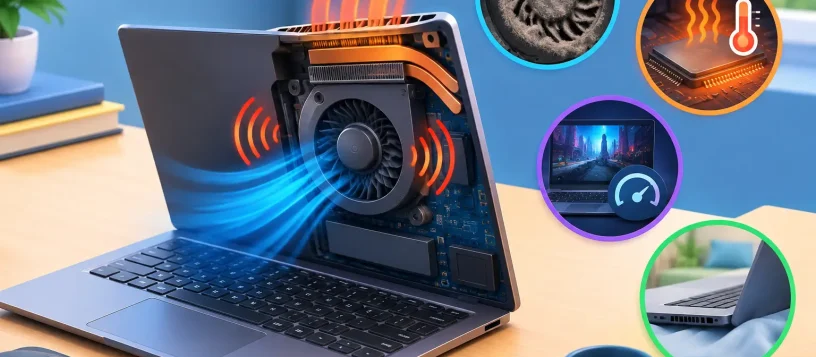
A laptop fan that suddenly gets loud can make a quiet home office, classroom, or meeting feel distracting fast. If you are asking what causes laptop fan noise, the short answer is usually heat. Your fan is trying to move heat away from the processor and other components before performance drops or damage occurs.
Some fan noise is normal, especially during video calls, gaming, large file transfers, photo editing, or multitasking. A fan that runs constantly at full speed, rattles, grinds, or starts making noise during simple tasks is different. That is often a sign that your laptop needs cleaning, software attention, or professional repair.
What Causes Laptop Fan Noise During Everyday Use?
Laptop fans are designed to adjust their speed based on internal temperature. When your device needs more cooling, the fan spins faster. Faster spinning naturally produces more airflow noise.
The question is whether the noise matches what your laptop is doing. If the fan briefly gets louder while you open a demanding program, that is expected. If it sounds like it is working hard while you are only checking email or typing a document, there may be an underlying issue.
Dust and blocked airflow
Dust is one of the most common reasons for noisy laptop fans. Over time, dust, pet hair, fabric fibers, and debris can build up inside the vents and around the fan. This restricts airflow, so the fan has to work harder and longer to keep components cool.
Using a laptop on a bed, couch, blanket, or carpet can make the problem worse. Soft surfaces can block the intake vents on the bottom or sides of the device. Even a laptop that is otherwise working properly may become hot and loud when it cannot pull in enough cool air.
External vent cleaning can sometimes help, but blowing compressed air into a laptop without care can push debris deeper inside or cause the fan to spin too quickly. A proper internal cleaning is safer when buildup is significant.
Demanding programs and background activity
Your fan may be responding to software rather than a hardware fault. Games, video editing tools, design software, browser tabs with video, and large spreadsheets can place heavy demand on the processor and graphics hardware. Heat rises, and so does fan speed.
Background tasks can do the same thing. Operating system updates, cloud backups, antivirus scans, browser extensions, and unwanted programs may use a surprising amount of processing power. On Windows, Task Manager can show which apps are using the most CPU. On a MacBook, Activity Monitor provides similar information.
If a single program is consistently driving high CPU usage, closing it or updating it may reduce the noise. If you see an unfamiliar process using resources, malware or adware could be part of the issue. Malware removal and a full system check may be needed before the laptop returns to normal.
Heat from an aging battery or charging system
A laptop can become warmer while charging, particularly when using resource-heavy applications at the same time. That does not automatically mean something is wrong. However, excess heat combined with poor battery health, a damaged charger, or charging-port trouble can make a fan run more often.
Watch for related symptoms such as a battery that drains quickly, a laptop that only charges at certain angles, unexpected shutdowns, or heat concentrated near the battery area. A swollen battery is a safety concern. Stop using the laptop and have it inspected rather than continuing to charge it.
When Laptop Fan Noise Points to a Hardware Problem
Not all fan sounds are caused by heat. The type of noise matters. A steady rush of air usually means the fan is operating at a higher speed. Clicking, buzzing, scraping, rattling, or grinding can suggest a mechanical issue with the fan itself.
A worn or damaged cooling fan
Laptop fans contain small moving parts that can wear down. A failing bearing may create a grinding or rattling sound, especially when the laptop first powers on or when the fan changes speed. Physical impact, liquid exposure, and dust accumulation can also damage the fan blades or housing.
A failing fan should not be ignored. If it stops spinning, the laptop can overheat quickly. Modern devices may slow down to protect themselves, shut off unexpectedly, or refuse to perform demanding tasks. Replacing the fan is usually more affordable than waiting for heat to affect the motherboard, battery, or storage drive.
Dried thermal paste or poor heat transfer
Thermal paste is a material placed between a processor and its heat sink. Its job is to transfer heat efficiently. As laptops age, thermal paste can dry out and lose effectiveness. The processor then runs hotter than it should, causing the fan to stay loud even after dust has been removed.
This repair requires opening the laptop and handling delicate internal components. It is not the first step for every noisy fan, but it can make a meaningful difference on an older laptop that overheats under normal workloads.
Internal damage after a spill or drop
A laptop may develop fan noise after being dropped or exposed to liquid, even if it still turns on. A small shift in the fan assembly, a damaged vent, corrosion, or debris inside the case can affect airflow and create unusual sounds.
Liquid damage can worsen over time as corrosion spreads. If the fan noise began after a spill, turn off the device, disconnect power, and avoid trying to dry it with heat. A professional diagnostic can identify whether the cooling system and other internal parts are still safe to use.
Quick Checks You Can Do Safely
Before assuming the worst, place the laptop on a hard, flat surface with clear space around its vents. Restart it and close programs you are not using. If your browser has many open tabs, especially tabs playing video or running web-based apps, reduce them and see whether the fan settles down.
Check for operating system and application updates, then run a reputable security scan. Also make sure you are using the correct charger for your laptop. An incompatible or low-quality charger can contribute to power and heat issues.
Avoid blocking vents, placing the laptop in direct sunlight, or using it on bedding. A cooling pad may improve airflow for some users, but it will not fix a clogged heat sink, failing fan, dried thermal paste, or an underlying software problem.
When to Bring in Your Laptop for Repair
Schedule a diagnostic if your laptop fan is loud during light use, if the chassis feels unusually hot, or if performance slows down while the fan is running hard. Immediate attention is a good idea if you hear grinding or clicking, notice random shutdowns, smell anything burning, see battery swelling, or have recently had a liquid spill.
For local residents and small businesses in Vaughan, Woodbridge, Maple, Kleinburg, and Nobleton, Vaughan Computers can inspect the cooling system, identify the source of excess heat, and provide an upfront repair recommendation. The right fix may be as simple as an internal cleaning, or it may involve fan replacement, thermal service, malware removal, or a battery repair.
A noisy fan is your laptop asking for better cooling. Addressing it early can protect the device you rely on for work, school, and everyday life – and may prevent a small repair from becoming a much larger one.