







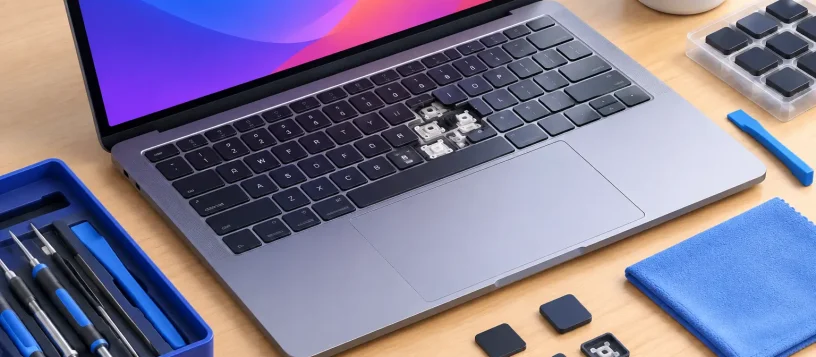
A MacBook keyboard can fail in ways that are easy to dismiss at first: one key repeats, the space bar feels stuck, or a whole row stops responding during an urgent email. This MacBook keyboard failure repair guide helps you separate a temporary software problem from a hardware failure that needs professional attention. The right next step can protect your files, reduce downtime, and prevent a small issue from becoming a more expensive repair.
Start by identifying the type of keyboard failure
Keyboard trouble is not always a failed keyboard. A MacBook may register the wrong characters because the input source changed, ignore keys because an app has frozen, or behave unpredictably after a macOS update. On the other hand, liquid exposure, debris, worn key mechanisms, and damage to the keyboard cable can create a true hardware fault.
Pay attention to the pattern. If only one or two keys are unreliable, debris or a damaged key mechanism may be the cause. If an entire section of keys fails, the issue may involve the keyboard assembly, internal cable, battery swelling, or logic board circuitry. If the keyboard works normally after restarting but fails again later, software or a background process is more likely.
For MacBook Air and MacBook Pro owners, the model and year matter. Some models use a keyboard design where individual key repairs are limited, while others may require replacement of a larger top-case assembly. A proper diagnosis prevents paying for a repair that does not address the actual cause.
Quick checks before arranging a MacBook keyboard repair
Before assuming the keyboard needs replacement, save any open work and restart the MacBook. This clears many temporary system errors. If the keyboard works after restarting, monitor it for a day or two. A recurring issue still deserves attention, especially if it affects work, school, or important accounts.
Next, check whether the wrong language or keyboard layout is selected in macOS settings. A changed input source can make familiar keys produce unexpected symbols, even when the hardware is working correctly. Also disconnect external keyboards, hubs, and accessories. A faulty USB device or Bluetooth connection can occasionally interfere with normal input behavior.
You can test the built-in keyboard in different places, such as the login screen, a simple text editor, and a browser address bar. If the same keys fail everywhere, the problem is likely not tied to one application. If it only happens in a specific program, update or reinstall that app before considering hardware repair.
An external keyboard is a useful temporary solution, but it is not a diagnosis. It can keep you productive while you arrange service, back up documents, or move essential files. It should not be used to ignore signs of liquid damage or swelling around the trackpad and lower case.
When debris is causing stuck or unresponsive keys
Dust, crumbs, and other small particles can prevent a key from moving or registering properly. This is especially common with keys used most often, including the space bar, return key, shift keys, and letters in frequently typed passwords.
Turn the MacBook off completely before cleaning. Hold it at a slight angle and use short, controlled bursts of compressed air around the affected key. Do not spray liquid cleaners into the keyboard, and do not force a keycap upward with a screwdriver or other sharp tool. MacBook keycaps and their retaining clips are delicate. A broken clip can turn a cleaning issue into a replacement job.
If a key still feels gritty, remains physically stuck, or only works when pressed hard, stop there. Repeated hard presses can damage the mechanism beneath the key. Professional inspection is the safer option when cleaning does not restore normal movement.
Liquid damage needs fast action, not more testing
Coffee, water, soda, and other spills are among the most serious causes of keyboard failure. Even a small spill can travel below the keyboard and reach the battery, trackpad, connectors, or logic board. A MacBook may appear fine immediately after a spill, then fail days later as corrosion develops.
If liquid reaches the keyboard, shut the MacBook down as soon as possible. Disconnect the charger and all accessories. Do not continue typing to check which keys work, do not plug it in, and do not use a hair dryer. Heat can push moisture deeper into the device and may damage sensitive components.
Place the MacBook in a position that helps liquid drain away from the keyboard, then arrange a professional liquid-damage assessment. Rice is not a reliable repair method. It does not remove residue from sugary or acidic drinks, and it cannot repair corrosion already starting inside the computer.
Fast service matters here. A technician can open the MacBook, inspect internal components, clean affected areas where appropriate, and determine whether the keyboard, battery, trackpad, or logic board has been affected. The outcome depends on how much liquid entered the device, what was spilled, and how quickly power was removed.
This MacBook keyboard failure repair guide: software checks
If there is no spill, no visible damage, and the keyboard problem began after an update or new software installation, run a few safe checks before replacing hardware. Start by updating macOS if an update is available and the MacBook remains stable enough to complete it. Apple software updates can resolve input-related bugs.
Try starting in Safe Mode. This loads macOS with fewer background items and can help reveal whether third-party software is affecting keyboard behavior. If the keyboard works properly in Safe Mode but not during normal startup, login items, utilities, or recently installed software deserve closer review.
You can also run Apple Diagnostics on supported MacBook models. Diagnostics may identify certain hardware issues, although a clean result does not guarantee that the keyboard is fault-free. Intermittent faults, minor liquid damage, and key-specific mechanical failures may not appear in a basic test.
Avoid repeatedly resetting settings at random or installing unverified “keyboard fixer” software. These steps can waste time and may create additional problems. If the issue is affecting passwords, file access, or business work, back up your data before further troubleshooting.
Signs you need professional keyboard repair
A professional repair is usually the practical choice when keys are missing, repeating, responding inconsistently, or failing in groups. It is also recommended if the keyboard and trackpad fail together, the MacBook was dropped, the lower case is bent, or the battery appears swollen.
Battery swelling deserves immediate attention. If the trackpad is difficult to click, the case is separating, or the bottom of the MacBook no longer sits flat, stop using and charging it. A swollen battery can place pressure on the keyboard and trackpad while creating a safety concern.
MacBook keyboard repair is often more involved than replacing a few keys. Depending on the model, a technician may need to replace the keyboard assembly or top case, inspect the cable and connectors, test the battery, and confirm that the trackpad and ports still function correctly. This is why a quote should follow diagnosis rather than guesswork.
At Vaughan Computers, customers in Vaughan, Woodbridge, Maple, Kleinburg, Nobleton, and nearby communities can bring in a MacBook for a free diagnosis and upfront repair quote. The goal is simple: identify the real fault, explain the available options clearly, and get you back to a dependable computer without unnecessary repairs.
Protect your files before a repair
Most keyboard repairs do not affect stored data, but backing up is still a smart precaution. Use Time Machine, cloud storage, or an external drive if you can access the MacBook with an external keyboard. For a computer that will not start or has liquid damage, avoid repeated power-on attempts just to complete a backup. Data recovery options may still be available, depending on the condition of the device.
Before handing over the MacBook, write down the symptoms you have noticed. Include whether the issue began after a spill, drop, update, or period of heavy use. Mention which keys fail, whether an external keyboard works, and whether the trackpad, charging, or screen has changed. These details help technicians diagnose the problem faster.
A keyboard failure does not have to leave you disconnected from work, school, or family. If basic checks do not solve it, protect your data, avoid forcing the keys, and have the MacBook assessed before the problem spreads further.