







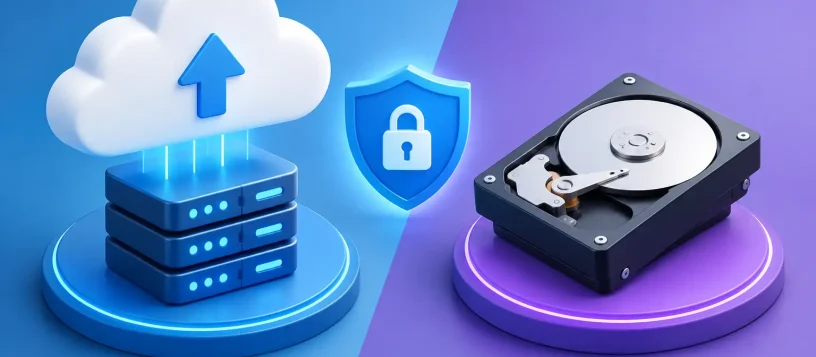
A dropped laptop, a failed external drive, or a ransomware warning can turn years of photos, invoices, schoolwork, and business records into an urgent problem. When comparing cloud backup versus hard drive, the right choice is rarely one or the other. For most households and small businesses, the safest plan uses both, with each covering the other’s weak spots.
A hard drive gives you a local copy you can access quickly. Cloud backup keeps another copy away from your home or office if the original device and local backup are lost at the same time. Understanding the difference can save you from making a costly decision after data has already disappeared.
Cloud Backup Versus Hard Drive: The Core Difference
A hard drive backup stores copies of your files on a physical device, usually an external USB hard drive or solid-state drive. You connect it to a computer, copy selected files or create a full system backup, then keep the drive somewhere safe.
Cloud backup sends encrypted copies of your files through the internet to remote data centers. Depending on the service and settings, it can run automatically in the background and continuously protect new or changed files. You can normally restore those files from another computer after signing in.
The key difference is location. A hard drive is usually close by, which makes it fast and convenient. Cloud backup is off-site, which protects it from events that affect your home, office, or devices.
Neither option is automatically safe simply because it exists. An external drive that is never updated may be missing months of work. A cloud account without a strong password and two-factor authentication can create a different kind of risk. A backup only works when it is current, accessible, and tested.
When an External Hard Drive Is the Better Choice
A local hard drive is an excellent option when you need fast backups and fast recovery. If a computer fails but your backup drive is healthy, transferring files can take far less time than downloading hundreds of gigabytes over a standard internet connection.
This can be particularly useful for large photo libraries, video projects, design files, or office folders. A local drive also avoids monthly storage fees after the initial purchase. For people with slow internet, limited data plans, or very large files, this matters.
External hard drives are simple to understand. Plug one in, run a backup, and keep it in a protected place. Solid-state drives cost more per gigabyte but are smaller, quicker, and less vulnerable to damage from a drop. Traditional hard disk drives typically provide more storage for the price, but their moving parts can wear out over time.
There are limits, however. A drive can fail without warning. It can be misplaced, stolen, damaged by water, or destroyed in a fire. If it stays connected to a computer during a ransomware infection, malicious software may encrypt the backup too. Keeping the drive disconnected when it is not actively backing up reduces that risk.
When Cloud Backup Makes More Sense
Cloud backup is built for protection when local equipment is unavailable. If a laptop is stolen from a vehicle, an office experiences water damage, or a power event harms several devices, an off-site copy may be the only copy left.
Automatic backups are a major advantage. Many people start with an external drive and good intentions, then forget to connect it for weeks. Cloud tools can protect files daily or continuously without relying on a manual routine. That consistency is valuable for busy families, remote workers, and small businesses managing customer documents.
Cloud backup can also make access easier when you replace a computer or need a file while away from home. It is especially useful for files that change often, such as accounting records, proposals, spreadsheets, and active work documents.
The trade-off is recovery speed. Backing up and restoring large amounts of data depends on your internet connection. Restoring a few documents may take minutes. Restoring an entire computer with several terabytes of data can take much longer. Monthly fees can also add up, especially if you need storage for multiple devices or large media collections.
Privacy deserves attention as well. Reputable providers encrypt data during transfer and while stored, but you should still read what is included in the plan. Some services are designed for syncing files between devices, while others are true backup services with version history and full-device restoration. Those are not always the same thing.
Why File Sync Is Not Always Backup
A synced folder can be helpful, but it should not be your only protection. Syncing mirrors changes across devices. If you accidentally delete an important folder and that deletion syncs everywhere, the file may disappear from every connected device.
A true backup service keeps historical versions for a defined period, allowing you to restore an earlier copy before the mistake, corruption, or ransomware attack occurred. Before choosing a cloud plan, check how long deleted files and previous versions remain available.
The same issue applies to hard drives. Simply dragging files to an external drive gives you a copy, but it may not preserve older versions. Backup software can create scheduled backups and retain multiple restore points. That extra layer can be the difference between recovering a damaged file and discovering that every copy is already damaged.
The Best Answer for Most People: Use the 3-2-1 Rule
For important data, follow the 3-2-1 backup rule: keep three copies of your data, on two different types of storage, with one copy stored off-site.
For example, the original files live on your laptop or office desktop. A second copy is stored on an external hard drive. A third copy is backed up to a cloud service. This approach protects against common problems such as device failure, accidental deletion, malware, theft, and local damage.
It does not need to be complicated. A family might back up phone photos and personal documents to the cloud while using an external drive for a computer’s full backup. A small business may schedule encrypted local backups each evening and use cloud backup for essential records and active workstations.
What matters is matching the plan to the value of the information. Losing a few downloaded movies is inconvenient. Losing years of family photos, tax records, client files, or an entire business database can be far more serious.
How to Choose the Right Setup
Start by identifying what needs protection. Do not assume everything is already backed up because you can see some files in a cloud folder. Check documents, desktop folders, email archives, photos, financial records, applications, and any files stored outside your synced locations.
Next, consider how quickly you would need your files back. If your business cannot operate without a particular workstation, a local backup supports faster recovery. If your biggest concern is theft, fire, or a complete loss of equipment, off-site cloud protection becomes essential.
Also consider the size of your data and the speed of your internet service. A cloud plan may be ideal for documents and photos, while large video archives may be more practical on a local drive with selected cloud copies of the most valuable projects.
Finally, plan for security. Use a unique password for your backup account, turn on two-factor authentication, and keep recovery details somewhere secure. Encrypt local drives that contain sensitive files. Labeling a drive with “backup” is useful, but writing passwords on the drive is not.
Do Not Wait for a Failure to Test Your Backup
A backup should be checked before an emergency. Open a few files from the external drive. Confirm that cloud backups are running and that you can restore a previous version. Make sure someone in your household or business knows where the backup is and how to access it if needed.
If a computer is already showing signs of drive failure, strange noises, repeated crashes, missing files, or a ransomware message, stop using it as much as possible. Continued use can make recovery harder. Vaughan Computers can assess the device, help with data recovery where possible, and set up a practical backup plan for the devices you rely on.
The best time to choose between cloud backup and a hard drive is when your files are still safe. Set up the extra copy now, test it once, and let it protect the moments and work you cannot replace.