







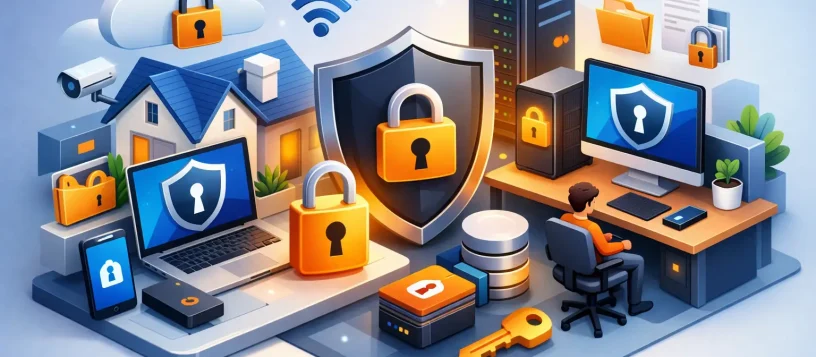
A laptop that will not start, a phone dropped in water, or a suspicious email opened during a busy workday can put years of photos, documents, contacts, and customer information at risk. The best ways to protect data are not complicated, but they do require a plan that covers everyday accidents, hardware failure, theft, and online threats.
For families, students, and small businesses in Vaughan, data protection starts before something goes wrong. A repair may restore a device, but a current backup and sensible security habits are what protect the information you cannot replace.
Best Ways to Protect Data Before a Problem Happens
The most effective approach is to use several layers of protection. No single app, password, or backup drive can cover every situation. If a device is stolen, for example, encryption and screen locks help keep files private. If the device fails, a backup is what gets those files back.
Keep more than one backup
A backup is a separate copy of your files that you can restore after accidental deletion, hardware failure, malware, or liquid damage. Saving everything only on your laptop, desktop, or phone is not a backup. If the device stops working, those files may be unavailable when you need them most.
For most households, automatic cloud backup combined with an external hard drive is a practical setup. Cloud storage protects files when a device is lost or damaged away from home. An external drive gives you another copy that you control and can access without relying entirely on an internet connection.
Small businesses should take this further by following the 3-2-1 principle: keep three copies of important data, on two different types of storage, with one copy stored off-site. This could mean files on office computers, a local encrypted backup device, and a secure cloud backup. The extra copy may feel unnecessary until a ransomware infection or office equipment failure affects every workstation at once.
Test backups occasionally. A backup that cannot be opened or restored is not enough. Check that recent folders, documents, photos, and business records are actually syncing and available.
Use strong, separate passwords
Reusing one password across email, banking, social media, and work accounts creates a major risk. Once one service is compromised, criminals may try that same password everywhere else.
Use a long, unique password for every important account. A password manager can create and store complex passwords so you do not have to remember each one. This is often safer and more convenient than using short variations of the same familiar password.
Your email password deserves special attention. Email often serves as the recovery point for other accounts, which means access to your inbox can lead to password resets across your digital life. Turn on multi-factor authentication for email, financial apps, cloud storage, and business platforms whenever it is available. A code from an authenticator app or a security key adds protection even if someone obtains your password.
Keep software and devices updated
Updates do more than add features. They frequently fix security weaknesses that scammers and malware can exploit. Delaying updates for weeks or months leaves phones, computers, browsers, routers, and business software exposed to known problems.
Set operating systems, web browsers, and security software to update automatically where possible. Restart your computer when an update requires it. On a small business network, make sure shared computers, Wi-Fi equipment, and any network-attached storage are also maintained. Older devices may not support current security updates, and that is a good reason to assess whether repair, replacement, or an upgraded operating system makes better sense.
Protect Your Devices From Physical Loss and Damage
Cybersecurity matters, but many data emergencies are caused by ordinary events: a coffee spill, a failing hard drive, a cracked phone, or a laptop left in a car. Physical protection reduces the chance that a simple accident becomes permanent data loss.
Use a protective case and screen protector on phones and tablets, especially devices used by children or carried daily. Keep drinks away from computers, avoid blocking ventilation, and do not use a laptop on bedding or soft surfaces that trap heat. Heat can shorten the life of internal components and contribute to unexpected failures.
For desktop computers and small office equipment, a surge protector or uninterruptible power supply can help prevent damage caused by power surges or sudden outages. It will not replace a backup, but it can give you time to save work and shut systems down safely during a power interruption.
If a phone or computer has been exposed to liquid, stop charging it and avoid repeatedly turning it on to “see if it works.” Power running through wet components can cause further damage. Professional diagnostics as soon as possible can improve the chance of recovering the device and its data.
Encrypt and lock every device
A lost device is not just expensive to replace. It can expose saved passwords, private messages, medical information, tax documents, and business files.
Use a strong passcode, fingerprint, or face unlock on every phone, tablet, and computer. Enable full-device encryption, which is available on many modern devices. Encryption helps ensure that someone who removes the storage drive or bypasses the normal sign-in screen cannot easily read your files.
Also enable device location and remote lock or erase features. These tools can help you find a misplaced phone or protect its contents if recovery is unlikely. Remote erase is a last resort because it removes data from the device, which is why current backups remain essential.
Be Careful With Email, Messages, and Downloads
Many serious data losses begin with one convincing message. A fake delivery alert, invoice, password-reset request, or job application can persuade someone to enter credentials on a fraudulent page or download harmful software.
Before clicking, pause and inspect the message. Look closely at the sender address, spelling, unexpected attachments, and requests for urgent payment or login details. A real company will not usually pressure you to act within minutes through an unsolicited message.
Do not install software from pop-up ads, unfamiliar websites, or callers who claim your computer has a virus. Legitimate security warnings do not normally ask you to call a random number or provide remote access to your computer. When in doubt, close the browser window and seek trusted local support.
For small businesses, employees should know exactly how to report suspicious emails without embarrassment. Fast reporting can prevent a single phishing attempt from becoming an account takeover or network-wide ransomware incident.
Secure Home and Small Business Wi-Fi
Your router is the front door to your network. If it uses an outdated password or old firmware, devices connected to it may be easier to target.
Change the router’s default administrator password and use a strong Wi-Fi password that is not shared widely. Choose WPA3 security when your router supports it, or WPA2 if necessary. Keep the router firmware updated, and disable remote management unless you have a clear reason to use it.
A guest Wi-Fi network is useful for visitors, smart devices, and customers. It keeps those connections separate from computers that hold personal records or business information. For offices, separate networks and properly managed user permissions are worth the effort because not every employee needs access to every file.
Know What to Do When Data Is at Risk
Quick action can make a meaningful difference. If you believe an account has been compromised, change the password from a trusted device, sign out of other active sessions, and review recovery email addresses, phone numbers, and payment details. Contact your bank immediately if financial information may be involved.
If your computer shows ransomware messages, unusual encryption of files, repeated pop-ups, or unknown programs, disconnect it from Wi-Fi or unplug the network cable. Do not pay immediately, delete files, or continue using the device. Isolating it can reduce the chance of the infection spreading to shared folders, backup drives, or other computers.
For a failing hard drive, unusual clicking sounds, frequent crashes, missing files, or a computer that cannot find its operating system are warning signs. Avoid installing recovery software or repeatedly restarting the device if the data is valuable. Those actions can overwrite recoverable information or worsen a mechanical problem.
Vaughan Computers can help assess damaged devices, remove malware, improve backup coverage, and determine the safest next step for recovery. A clear diagnosis before major repair work gives you a better chance of protecting what matters without paying for work you do not need.
The best protection is a routine you can maintain: automatic backups, secure passwords, regular updates, and a plan for who to call when a device behaves differently. Set aside a few minutes this week to check your backups and security settings. That small step can save irreplaceable files, work time, and unnecessary stress later.