







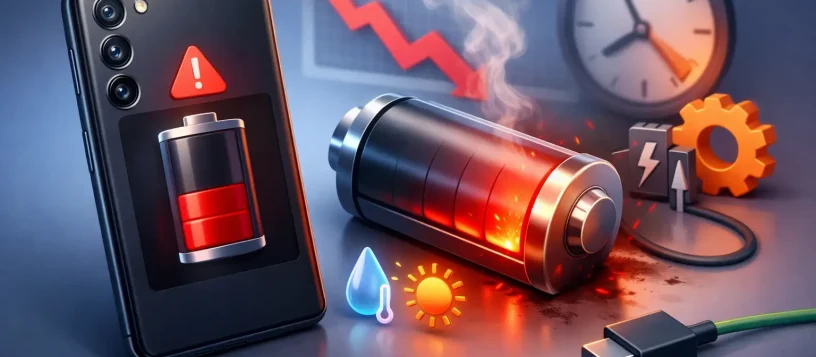
A Samsung phone that drops from a comfortable charge to low battery before lunch is more than an inconvenience. It can interrupt work calls, school messages, navigation, and the everyday tasks you depend on. If you are asking, “why is my Samsung battery draining?” the answer may be a setting, an app, weak signal, or an aging battery that no longer holds power as it should.
The good news is that fast battery drain is often diagnosable. Start with the simple checks below, then watch for the signs that point to a battery or charging repair.
Why Is My Samsung Battery Draining So Fast?
Battery use is not always a fault. Streaming video, gaming, video calls, GPS navigation, and mobile hotspot use all consume substantial power. A long day away from Wi-Fi can also drain a phone quickly because it works harder to maintain a cellular connection.
The concern is when your usage has not changed but battery life suddenly has. A Samsung phone that becomes hot while sitting idle, loses a large percentage overnight, shuts down before reaching 0%, or charges unusually slowly deserves closer attention.
A recently installed or misbehaving app
Apps are among the most common reasons for unexpected battery drain. Social media, fitness tracking, messaging, shopping, navigation, and news apps can keep refreshing in the background. Occasionally, an app update develops a bug that makes it use more power than normal.
Open Settings, then Battery and device care, and select Battery. Review the battery usage information to see which apps have used the most power. One app standing far above the rest is worth investigating. Update it first. If the problem continues, force close it, restrict its background activity, or uninstall it temporarily to test whether your battery life improves.
Be careful not to restrict essential apps too aggressively. Email, security, banking, and messaging apps may delay notifications when placed in deep sleep. The best approach is to limit apps you rarely use while allowing important services to run normally.
Display settings and always-on features
Your display is one of the biggest consumers of battery power. High brightness, a long screen timeout, high refresh rate, and Always On Display can all shorten runtime, especially on larger Samsung Galaxy models.
Try lowering brightness or enabling adaptive brightness. Set the screen timeout to a practical length, such as 30 seconds or one minute, rather than several minutes. If your phone supports a 120Hz refresh rate, switching to Standard refresh rate may help when you need to stretch a charge. The trade-off is that scrolling and animations may feel slightly less fluid.
Dark mode can also reduce power use on Samsung phones with AMOLED displays, particularly if you spend a lot of time in apps with dark backgrounds. It will not solve a failing battery, but it can make a meaningful difference over a full day.
Weak signal and constant network searching
A phone in an area with poor reception uses more energy trying to find and hold a signal. This is common in basements, parking structures, rural areas, and buildings with thick concrete walls. If your Samsung battery drains quickly at work or at home but performs better elsewhere, signal strength may be the cause.
When a reliable Wi-Fi connection is available, connect to it. Turning on Airplane Mode in a known dead zone can preserve battery if you do not need calls or data at that time. You can also turn Wi-Fi and Bluetooth off when you are certain you will not use them, although constantly switching features on and off usually has less impact than managing screen use and problematic apps.
Background syncing, location, and connectivity
Cloud backups, photo uploads, software downloads, smartwatch connections, Bluetooth accessories, and location services can quietly use power throughout the day. This activity often increases after setting up a new phone, restoring a backup, or installing a major Android update.
Check which apps have location permission and change unnecessary access to “Allow only while using the app.” Review auto-sync settings for accounts that do not need immediate updates. If your phone is uploading thousands of photos or restoring data, give it time to finish while connected to Wi-Fi and a charger. Battery use may return to normal once that work is complete.
Software bugs or outdated system software
Samsung and Android updates can fix battery-related bugs, but an update can also temporarily cause increased drain while your phone reorganizes files and apps in the background. Give it a day or two after a major update before assuming something is wrong.
After that, check for the latest software update under Settings and Software update. Restarting the phone is also worthwhile. It clears temporary processes that may be stuck. If the battery problem began immediately after a specific app update, the app itself is a stronger suspect than the phone’s operating system.
Quick Samsung Battery Fixes to Try Today
Start with a normal restart, then check battery usage for apps consuming unusual power. Update Samsung software and your installed apps. Next, reduce brightness, use a shorter screen timeout, and turn on Power Saving mode when you need extra runtime.
Samsung’s Power Saving mode can limit background activity, reduce performance, and change certain display settings. It is useful during travel, long workdays, or when you cannot charge soon. However, it is a temporary tool, not a repair for a battery that has degraded.
You can also use the Device Care section to optimize your phone. This can close background apps and identify issues affecting performance. Avoid installing third-party “battery saver” or “cleaner” apps. Many run continuously, show ads, request unnecessary permissions, and may create more battery drain instead of less.
If the issue started after you changed several settings, resetting app preferences may help restore normal behavior without erasing your photos or messages. A full factory reset should be a last step after backing up your data, because it takes time and will not repair worn battery cells or hardware damage.
When the Samsung Battery Itself Is the Problem
Lithium-ion batteries wear down naturally. Every charge cycle gradually reduces the amount of energy they can store. Heat, frequent deep discharges, heavy gaming, fast charging, and age can speed up that process.
An older phone may still show 100% after charging but fall rapidly to 70% or 50%. It may also lose charge faster in cold weather, become warm during light use, or turn off unexpectedly even when the battery indicator says power remains. These are common signs that the battery capacity has declined.
A damaged or swollen battery requires immediate attention. If the back cover is lifting, the screen appears pushed up, the phone rocks on a flat surface, or there is visible swelling, stop charging and using the device. Do not puncture, bend, or attempt to press the phone back together. A swollen battery is a safety concern and should be assessed by a qualified technician.
Charging problems can look like battery problems too. A worn cable, damaged charging port, low-quality charging block, or moisture and debris in the port may prevent the phone from charging properly. If the charge percentage barely rises, disconnects when the cable moves, or takes many hours to charge, the issue may be with the charging system rather than battery capacity alone.
Get a Clear Diagnosis Before Paying for a Repair
The right repair depends on what testing finds. Replacing a battery can restore dependable daily use when the existing battery is worn out. But if the real cause is a charging port, software issue, power-management fault, or liquid damage, a battery replacement alone may not solve it.
For residents and small businesses in Vaughan, Woodbridge, Maple, Kleinburg, and Nobleton, Vaughan Computers can assess Samsung battery and charging concerns, explain the cause clearly, and provide an upfront repair option. A proper diagnosis helps avoid spending money on the wrong fix and gets your phone back to supporting the calls, work, and family connections that cannot wait.
If your phone is still usable, begin by checking the battery usage screen and watching how it performs over the next day. If it drains while idle, overheats, shuts down early, or shows any swelling, treat that as a signal to have it checked rather than working around a problem that will likely get worse.